Notion Pomodoro Timer
Style it here, copy one URL, and your Notion dashboard has a live pomodoro widget.
Focus
25:00
Add it to Notion in three steps
- Customize — open the ⚙ panel and pick a scene, font, message, and your focus/break lengths. Everything you choose is encoded in the embed URL.
- Copy — press “Copy embed code” and take the URL inside the iframe snippet.
- Embed — in Notion, type
/embed, paste, Enter. Drag the corners to size it like any other block.
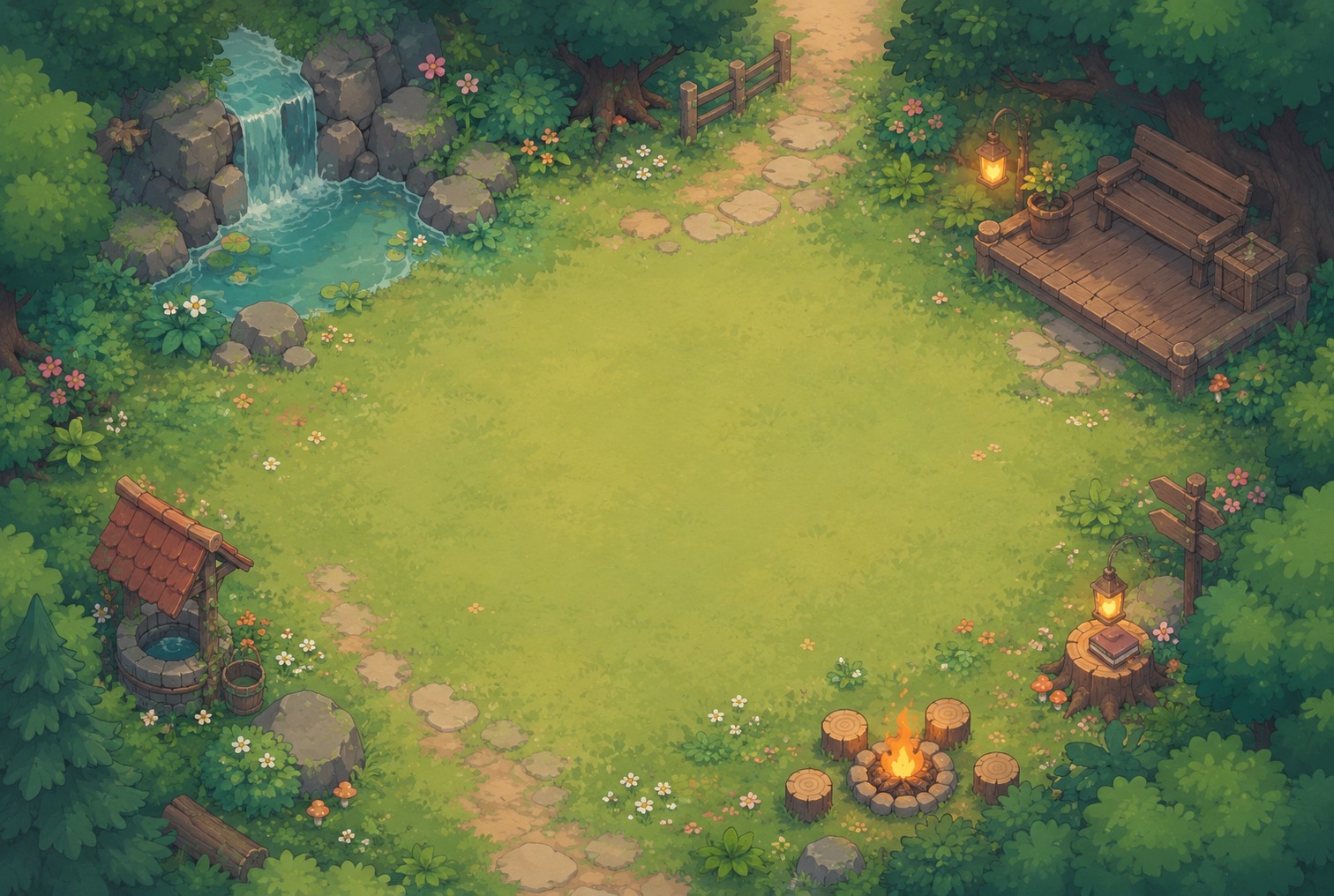
A widget that matches your workspace
Running a minimal black-and-white dashboard? Use the plain White or Black background. Built a cozy study hub? Drop in the sakura or winter-night scene. The widget runs the full pomodoro cycle — focus, break, long break — rings at each phase, and stays accurate even while you edit elsewhere, because the countdown is anchored to a real end time rather than a ticking script.
Frequently asked questions
- How do I add a pomodoro timer to Notion?
- Style the timer on this page, press “Copy embed code”, and copy the URL inside it. In Notion, type /embed on any page, paste the URL, and press Enter — the timer appears as a live widget you can resize like any block.
- Does the Notion widget keep running when I scroll away?
- Yes. The countdown is anchored to a real end time, so it stays accurate while you work elsewhere in Notion, and the alarm still rings at each phase change.
- Can I match the widget to my Notion theme?
- Yes — pick the White background for light-mode pages, Black for dark mode, or any pixel-art scene for a decorated dashboard. Fonts, clock size, message, and focus/break lengths are all part of the embed URL.
- Is the Notion pomodoro widget free?
- Completely free, no signup. The embed is a plain iframe, so it also works in Google Sites, Canva whiteboards, and any blog that accepts HTML.